Light It Twice: The Blending Step That Makes AI Background Swaps Look Real
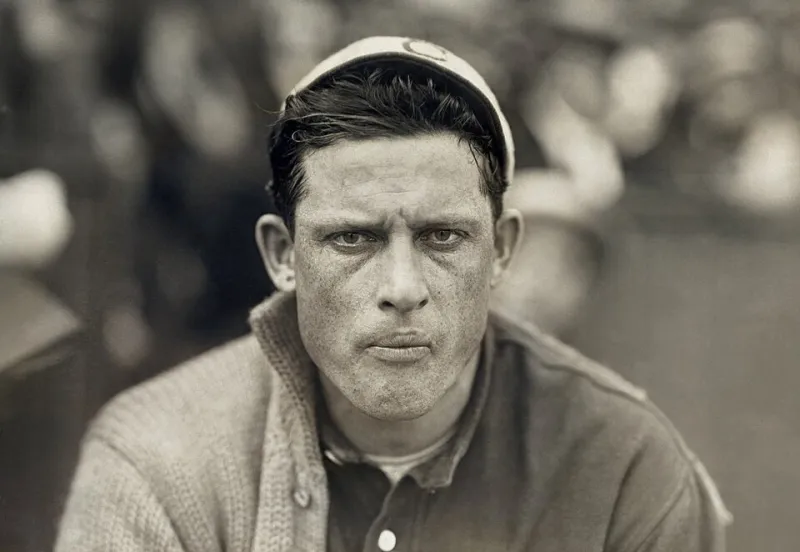
Photo: Paul Thompson, Public domain, via Wikimedia Commons
The cutout itself is the easy part now. Every major editor — Photoshop, Canva, Luminar, a dozen browser tools — will trace a subject in a few seconds. What separates a portfolio-ready composite from a bad local car dealership ad is everything that happens after the background gets deleted.
I've been swapping backgrounds for client work for years, first with the pen tool and a lot of coffee, now with AI selections. The tools changed. The mistakes didn't. Here's the workflow I run every time, plus the checklist I use before sending anything to a client.
Start With the Right Background, Not the Best Background
The single biggest time-saver is choosing a replacement scene that's already close to your original lighting. If your subject was shot with a window at camera left, don't drop them into a sunset beach with the sun behind them. No amount of slider-pushing fixes a fundamental light-direction mismatch.
Before you commit to a background, ask three questions:
- Where is the light coming from? Match it to your subject's shadow side.
- How hard is the light? Crisp shadows on your subject pair with crisp shadows in the scene.
- What time of day does it feel like? A cool-toned office subject will look radioactive in golden-hour light.
Spend five minutes picking the right plate and you'll save an hour of blending.
Match the Color Temperature First
Once the subject is on the new background, the fastest tell that something's off is color temperature. Your subject was probably shot under one light source; the new scene has its own. When they disagree, your brain notices before your eyes do.
My method: add a Color Balance or Selective Color adjustment clipped to the subject layer only, then push it until the subject's whites and skin tones sit in the same temperature family as the background. Sample a neutral highlight in the background with the eyedropper and aim for that neighborhood.
A quick sanity check: squint at the image. If the subject looks like they're glowing or floating, they're too warm or too cool relative to the scene.
The Contact Shadow: Where Composites Go to Die
Nothing screams "pasted in" louder than a subject with no shadow connecting them to the ground. AI cutouts remove the original shadow automatically, which is exactly the problem.
Fix it in two layers:
- Ambient occlusion — a soft, dark blob right under the subject where they touch the ground. Use a soft round brush at low opacity, black, on a layer set to Multiply. Keep it tight.
- Directional shadow — a longer, softer shadow cast away from the scene's light source. Duplicate the subject layer, fill it black, transform it to lean in the right direction, blur it, and drop the opacity to 20–35%.
If the background has hard sun, the directional shadow matters more. In overcast or indoor scenes, the tight contact shadow does most of the work.
Edges: Kill the Halo Before the Client Finds It
AI selections love to leave a bright fringe — leftover pixels from the original background hugging your subject's outline. On light hair against a dark new scene, it's glaring.
Three fixes, in order of effort:
- Defringe/Decontaminate: Most tools have a built-in option that shifts edge pixels toward the new background color. Try this first; it handles 80% of cases.
- Layer mask chisel: Zoom to 200% and paint out the fringe with a small brush on the mask. Tedious but bulletproof.
- Match the rim light: If the original scene had strong backlighting and the new one doesn't (or vice versa), paint a subtle rim highlight or darken the edge accordingly. A mismatched rim light reads as "off" even when viewers can't articulate why.
The Grain Pass Nobody Talks About
Modern AI cutouts are suspiciously clean, and so are AI-generated backgrounds. Real photos have noise. If your subject is a clean phone photo and your background is a tack-sharp stock plate, the difference in texture gives the composite away.
Add 1–3% monochrome noise across the entire flattened image at the end. It unifies the two sources and, as a bonus, makes the whole thing feel more photographic. This is the same trick film emulation presets use, and it costs you ten seconds.
The 60-Second Pre-Flight Checklist
Before you export, run through this list:
- Light direction matches between subject and background
- Color temperature matched (check whites and skin)
- Contact shadow present and tight
- Directional shadow present if the scene calls for it
- No edge halos at 200% zoom
- Rim light consistent with the scene
- Grain added globally
- Final look at thumbnail size — does it read as one photo?
That last one matters more than any zoomed-in inspection. Clients and audiences see the image at feed size first. If it convinces at a glance, the details are doing their job.
One Last Thought
The goal of a background swap isn't to fool a forensic analyst — it's to make a viewer feel nothing. No hitch, no double-take, just a subject who seems like they were always standing there. When the lighting math is right, nobody compliments your compositing. They just think you're a better photographer than you were yesterday. That's the win.